How to Build an Arduino Weather Station with a DHT11 Sensor & LCD
Introduction
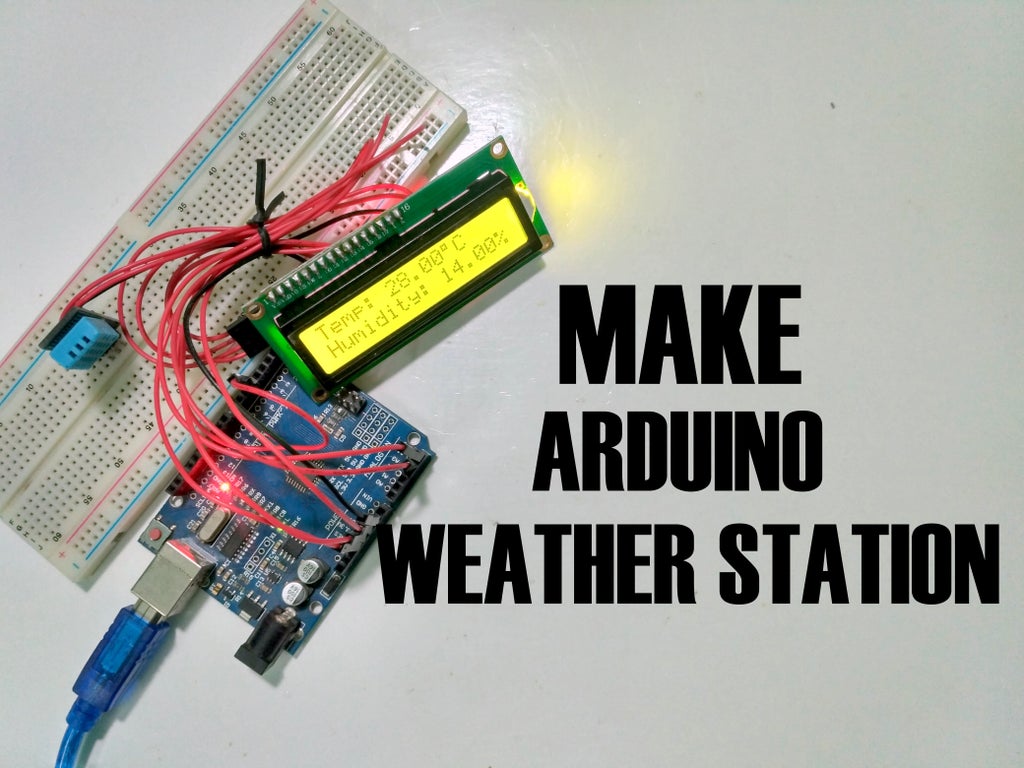
Hello everyone! In this tutorial, I am going to show you how to build a simple, real-time weather station. Using an Arduino Uno and a DHT11 sensor, we will detect the ambient temperature and humidity in your room and display the live data directly onto a 16×2 I2C LCD screen.
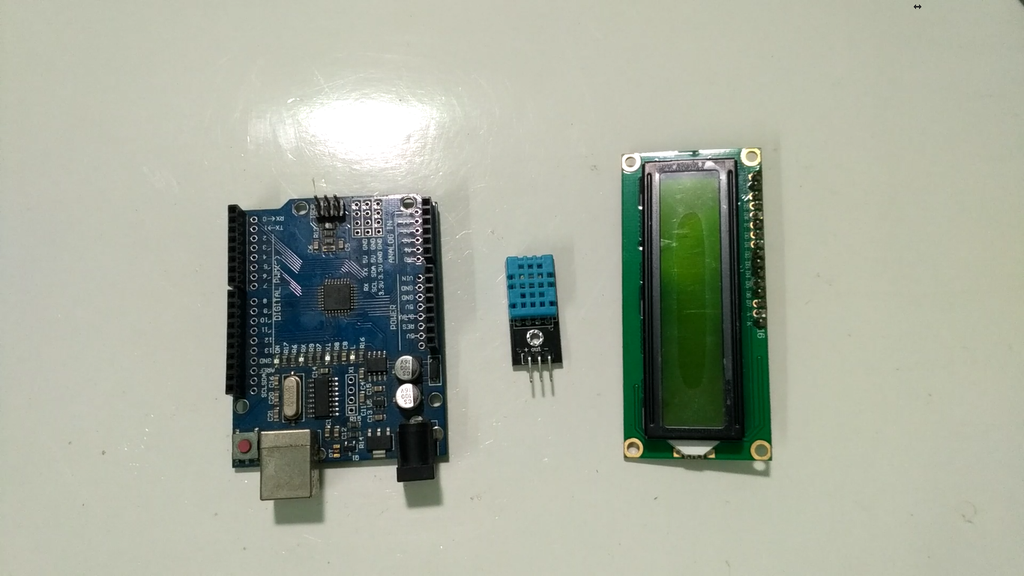
Before we dive into the connections and code, let's take a look at the components you will need for this build:
- DHT11 Sensor (Temperature & Humidity)
- 16×2 LCD Display (with I2C module)
- Arduino Uno (or compatible board)
- Male to Female Jumper Wires (8 pieces)
Step 1: Understanding the DHT11 Sensor
The DHT11 is a highly popular, low-cost digital sensor used for measuring temperature and humidity. It outputs a digital signal, making it incredibly easy to interface with microcontrollers like the Arduino. The operating voltage of this module is 3.3V to 5V.
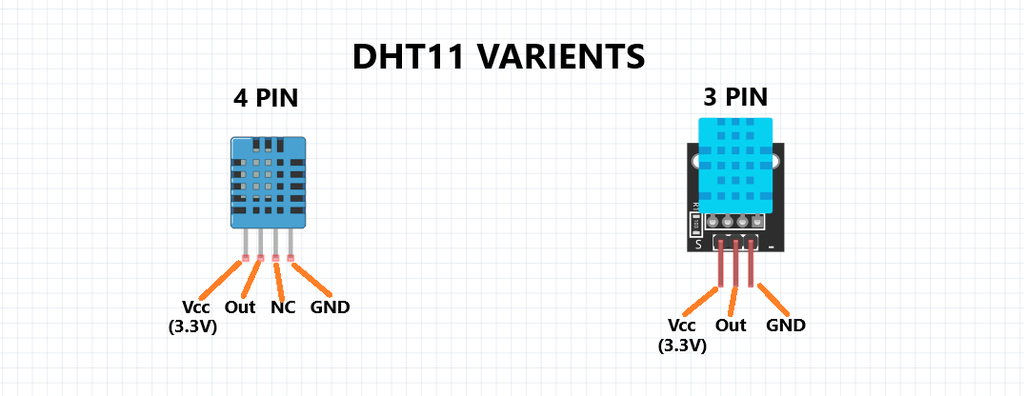
You will typically find two versions of the DHT11 module in the market:
- 4-Pin Version: Requires an external 10k Ohm pull-up resistor between the VCC and data (OUT) pins.
- 3-Pin Version (Module): Has a built-in 10k Ohm pull-up resistor already soldered onto the PCB, making it plug-and-play.
Step 2: Connecting the DHT11 to Arduino
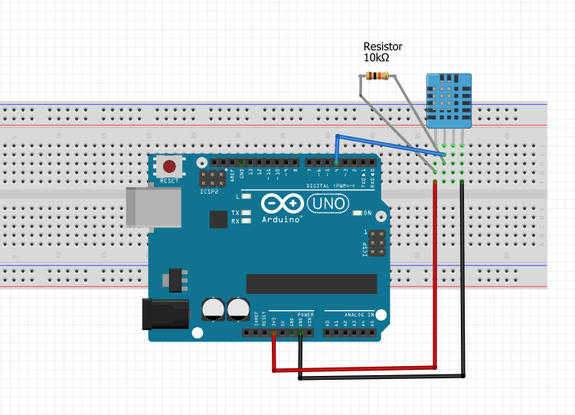
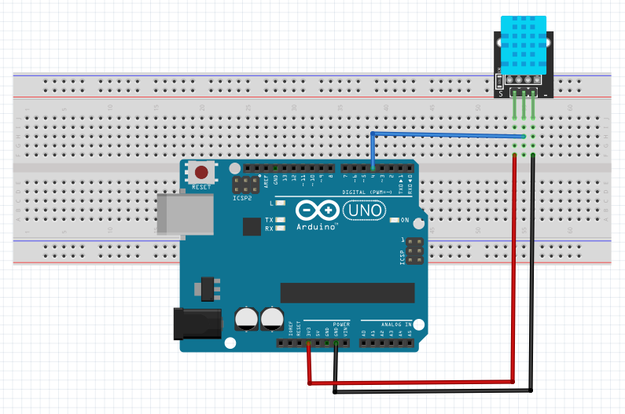
Wiring the sensor is straightforward. Follow the wiring configurations below based on the specific version of the DHT11 module you own.
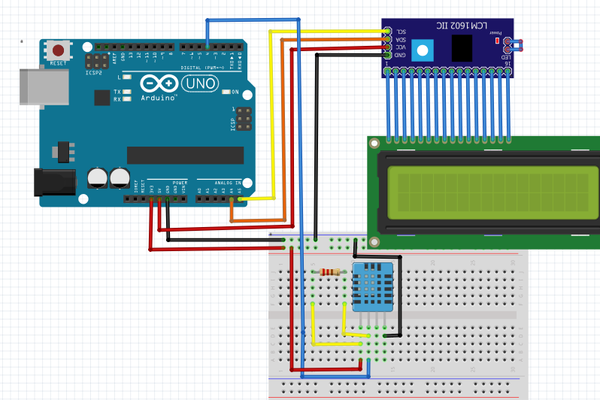
For the 4-Pin DHT11:
Note: Connect a 10K Ohm resistor between the Vcc and Out Pin.
| DHT11 Pin | Arduino Uno Pin |
|---|---|
| Vcc | 3.3V or 5V |
| Out (Data) | Digital Pin 4 |
| NC (No Connection) | Leave Empty |
| GND | GND |
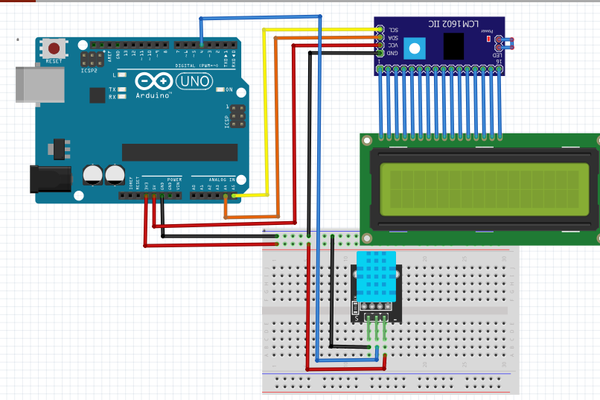
For the 3-Pin DHT11 Module:
| DHT11 Module | Arduino Uno Pin |
|---|---|
| Vcc (+) | 3.3V or 5V |
| Out (Data) | Digital Pin 4 |
| GND (-) | GND |
Step 3: Connecting the I2C LCD Display
Using an I2C module attached to your 16x2 LCD saves a massive amount of wiring. Instead of using 6 digital pins on the Arduino, the I2C module only requires 2 analog pins for communication.
| I2C LCD Pin | Arduino Uno Pin |
|---|---|
| GND | GND |
| VCC | 5V |
| SDA (Data) | Analog Pin A4 |
| SCL (Clock) | Analog Pin A5 |
Step 4: The Arduino Code
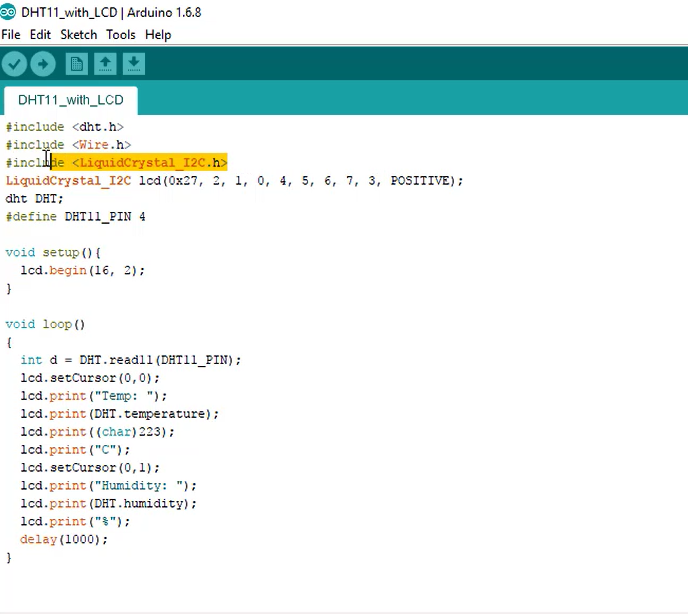
Before uploading the code, ensure you have installed the required libraries in your Arduino IDE: the DHT sensor library and the LiquidCrystal_I2C library. Once installed, copy and paste the code below into your IDE, compile it, and hit upload!
#include <dht.h>
#include <Wire.h>
#include <LiquidCrystal_I2C.h>

// Initialize the LCD display with I2C address and pins
LiquidCrystal_I2C lcd(0x27, 2, 1, 0, 4, 5, 6, 7, 3, POSITIVE);

dht DHT;
#define DHT11_PIN 4

void setup() {
  // Set up the LCD's number of columns and rows
  lcd.begin(16, 2);
}

void loop() {
  // Read data from the sensor
  int d = DHT.read11(DHT11_PIN);

  // Print Temperature on the first line
  lcd.setCursor(0, 0);
  lcd.print("Temp: ");
  lcd.print(DHT.temperature);
  lcd.print((char)223); // Degree symbol
  lcd.print("C");

  // Print Humidity on the second line
  lcd.setCursor(0, 1);
  lcd.print("Humidity: ");
  lcd.print(DHT.humidity);
  lcd.print("%");

  // Wait 1 second before updating again
  delay(1000);
}
Step 5: Final Assembly and Working
Once you upload the code, your LCD should immediately light up. Within a second, it will begin printing the ambient temperature in Celsius on the top row, and the relative humidity percentage on the bottom row. Try breathing lightly on the sensor or placing it near a warm cup of coffee to watch the live data update instantly!
Congratulations, you have successfully built a compact, fully functioning digital weather station. You can now use this foundational project to expand into IoT environments by adding Wi-Fi modules (like the ESP8266) to push your weather data to the cloud.
Comments
Post a Comment